 REINS Edu
REINS stands for Reviewed Explanations, Instructor-Navigated Steps

An AI tutor for programming labs. The lecturer holds the reins.
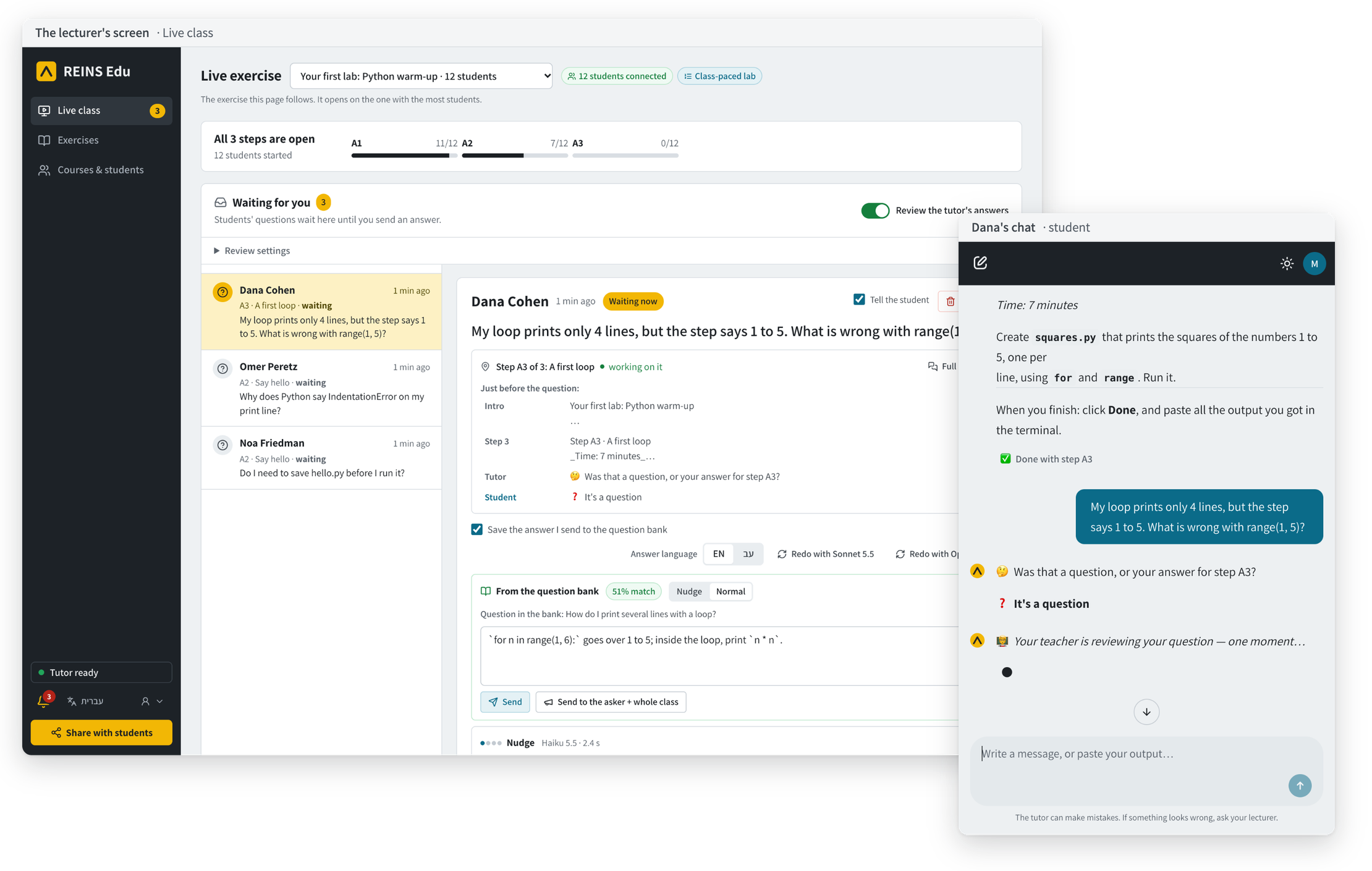
Students work through the lab in a chat. It isn't an ordinary chat: it won't give them the solution, and its answers don't reach them straight away. Each answer goes to the lecturer first, who sees every conversation as it happens and sets the pace for the class.
Free and open source (MIT). It runs on your own computer; students need only a browser.
The idea
We all work with a chatbot all day now, and so do our students. So why not test them in the chat, where they already are?
A homework exercise used to show how a student works. Today a chatbot can solve almost any exercise, and grading it tells you very little.
So instead of grading exercises, the lecturer works with the students inside the chat: the teacher in the loop. The aim is to train them not to take the chat's answers for granted, to take an answer a small piece at a time, and to keep asking questions.
What the lecturer controls
Every answer goes through you
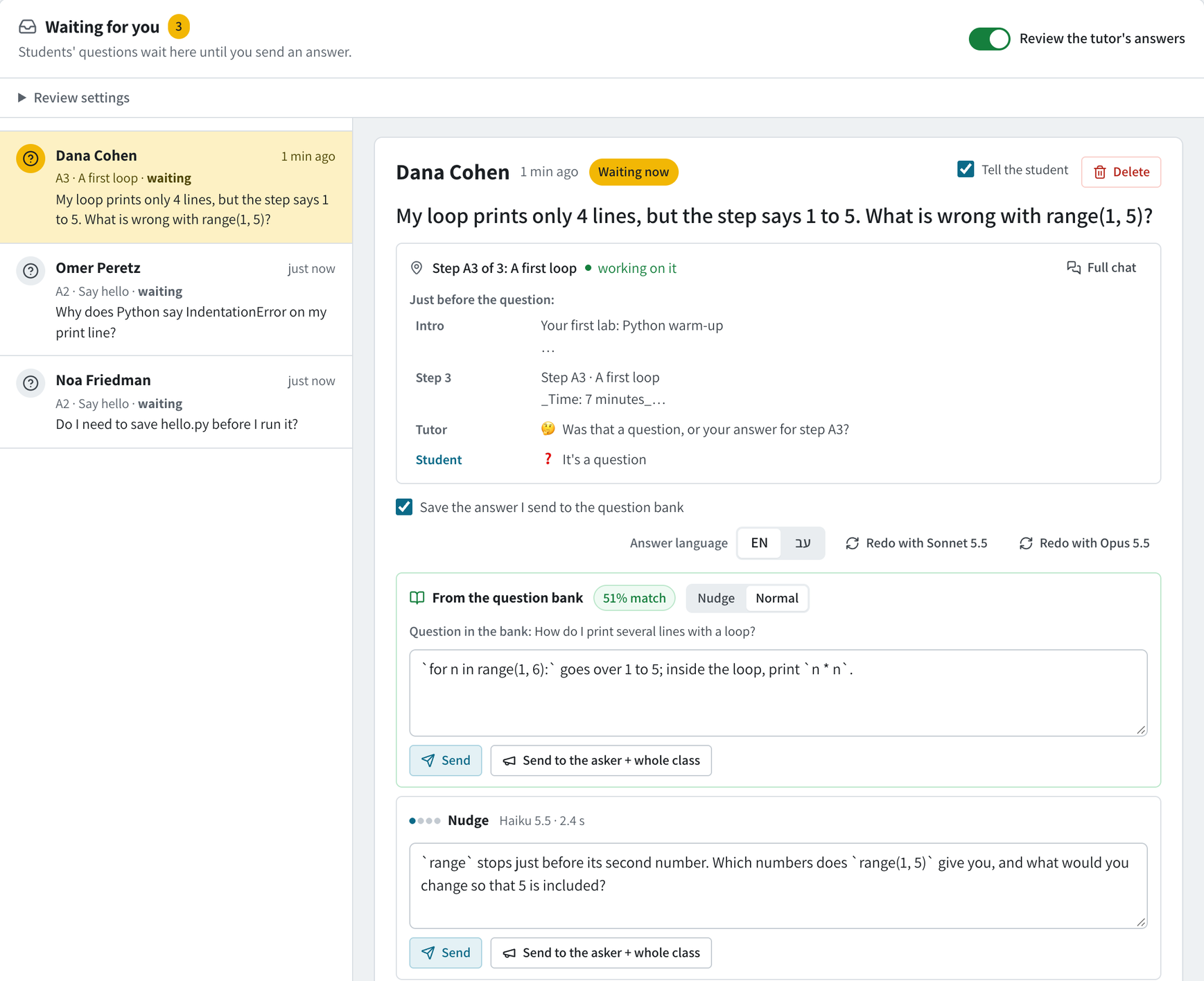
When a student asks something, the answer doesn't arrive right away. The tutor drafts a few, from a small hint to a full explanation, and they come to you. You pick one, fix it or write your own, and only then is it sent. If the question matters to everyone, you can send the answer to the whole class.
The class moves together
You decide how far the class can go. You see who has finished each step and open the next one when the class is ready. You can hold everyone at a step, send the whole class back, or move one student back or ahead. In a homework lab, each student goes at their own pace.
Hints, not solutions
Students don't get the solution from the chat. They get a small hint, a clearer one or a full explanation, whichever you choose. When the tutor answers on its own, without waiting for you, it still answers with hints and questions, following the notes you wrote for the exercise.
Checking that they understood
After a step, or whenever you decide, the chat asks the student a short question about what they just did. You see the answers. Students who get it right move on to the next step, and you decide about the rest.
One screen for everything
The dashboard shows where each student is, who is waiting for an answer, what they asked and what they answered. Everything that needs you is in one list, and a pop-up tells you when something new comes in.
After class
Every student's chats are saved, from every lab they worked on, together with their answers to the questions. After class you can go through them and grade each student: how much work they put in, and how good their answers were.
How a class goes
Students install nothing. They open a link and sign in.
Prepare a lab
A lab is one folder: the steps students see, plus notes for the tutor and expected answers that only you see. Three sample labs come with the install.
Share a link
Add your students from a CSV file, in English or Hebrew, and click Share with students.
Teach
Follow the chats, choose the answers to send, and open the next step when the class is ready.
Install
For macOS, Windows and Linux. You need about 1.5 GB of disk space and an internet connection. The first start installs Python and everything else into the program's own folder.
macOS or Linux, in the Terminal
curl -fsSL https://raw.githubusercontent.com/Shpanier/reins-edu/main/install.sh | bashWindows, in PowerShell
irm https://raw.githubusercontent.com/Shpanier/reins-edu/main/install.ps1 | iex- The first start downloads about 350 MB and takes a few minutes. After that it starts in seconds.
- The dashboard opens at
http://localhost:8010and asks you to create your account. - Then it asks for an API key from Anthropic or Google. The key stays on your computer, and you pay for what your class uses.
- Accounts, chats and grades stay on your computer. Nothing is sent to the REINS Edu authors.